Purchasing a used iPhone
The purchasing of an iPhone is notwithstanding an issue if it has got to be the second hand or used one. Most people are confused about purchasing an iPhone and usually bring some technical person with them to do so. For your information, it is worth mentioning here that the used iPhones divide into different categories.
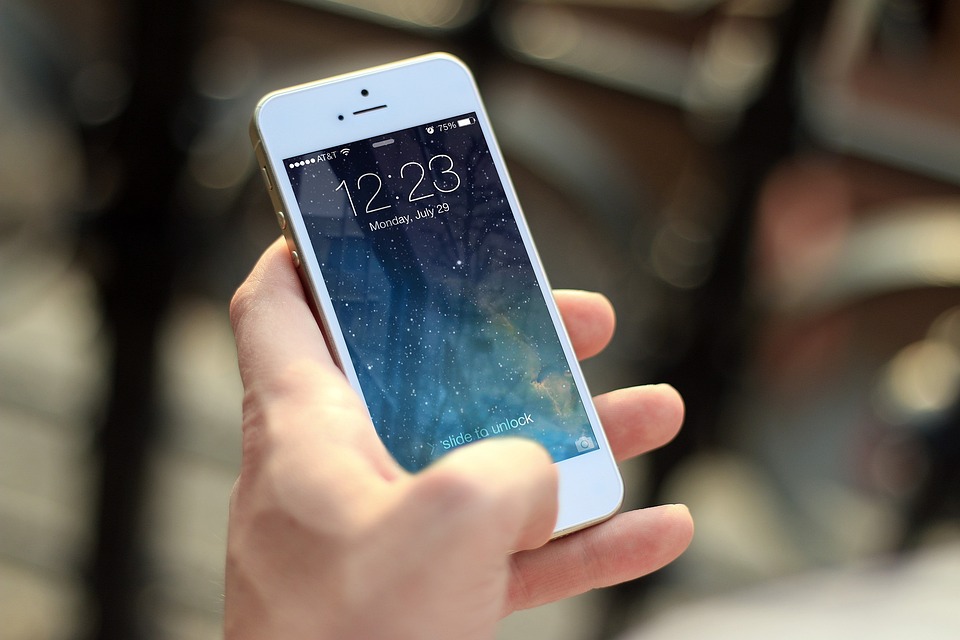
Kit Phone
It refers to the iPhones that come without boxes. The most usual thing you will hear from sellers is that this iPhone is new and not used very much. The term refurbished is also used for this kind of iPhone. Seller tries to convince the customer that these iPhones are refurbished by Apple themselves. The point to ponder is why a company will sell the same product with less value when they can sell it at retail price. Though people usually get tricked by these statements of the seller and purchase the iPhone without properly checking the details. So, it is not worth purchasing a kit iPhone.
Non-Kit Phone
These are the phones people tend to use for a while and then sell to other people because they want to purchase a new model or some other phone. They come with a complete box. Purchasing an iPhone with a complete box can be considered to some extent. But still, it needs to be checked thoroughly before buying it.
Checking an iPhone
In both cases, the things vary differently but the procedure of checking about how good the iPhone is based on the list of things as Physical Condition, IMEI Verification, Online Verification, SIM card Checking, Face ID Checking, Touchscreen Checking, 3d Id Checking, Brightness, Wi-Fi, Bluetooth, Battery, Storage, GPS, Gyroscope, Proximity, Performance.
Physical Condition
→ Check the apparent looks for scratches
→ Check the volume rocker buttons
→ Check the silent key button
→ Put the lightning cable and check is it charging or not. Make sure to insert and test from both sides of the lightening cable
IMEI Verification
For checking the International Mobile Equipment Identity of your iPhone, follow the steps
→ Open settings on iPhone
→ Click the “About” section, the IMEI number of the iPhone will be shown.
→ Now compare the IMEI with the IMEI number on Box and confirm both are the same or not
Online Status
Now, to verify iPhone online for checking the Blacklist Status, Activation Lock, Find my Phone, and Lost/Stolen Status of the device. For this purpose go to the website iunlocker.net Paste the IMEI and check the status.
→ If find my phone is ON, it means that it is attached to an Apple ID and you cannot enter your apple ID on it
→ Make sure the apple ID is signed out and find my phone is OFF on the iPhone you are purchasing
SIM card Checking
→ Insert a SIM card
→ Check the name of the service provider, if it is showing i.e. Mobilink, Warid, Telenor on top, this means the phone carrier is unlocked and PTA approved.
Face ID Checking
Setup faces id and see is it working or not. If the Face ID did not set up and show any error in recognizing. It means there is an issue with the Face ID sensor strip.
Touchscreen Checking
→ Activate the Assistive Touch on iPhone. Move it on the complete screen from one end to the other with your finger. Make sure it keeps following your finger without a lag. If there is any lag that means a certain portion of the touchscreen is not working
→ It can also be checked by typing from the keyboard
3D Touch Checking
Keep the brightness full. Touch the brightness bar forcefully and make sure three options should pop up including Truetone, Night shift, and Dark mode.
Brightness Checking
Keep it to zero, the display should then be shown as well otherwise there will be an issue in the brightness of the iPhone if nothing appears
Wi-Fi Checking
→ Turn on Wi-Fi
→ Connect with a Wi-Fi network
→ Check by opening apple.com
→ Make sure its strength is okay
Bluetooth Checking
→ Turn on Bluetooth
→ Connect with Airpods or any Bluetooth hands-free you have.
→ If it is working fine that means Airdrop and hotspot feature will work fine as well
Battery Health Checking
See it in the settings and verify the seller is telling true
→ Open settings on iPhone
→ Click on Battery
→ Check Battery health
Battery and Storage Checking
Note down the battery current percentage. Now start clicking burst shot and make sure the iPhone does not hang or restart in this duration it means
→ There are issues in battery or
→ An issue in the storage of the iPhone
→ If after taking 50+ photos in burst the battery drains 2 to 4 percent it is okay otherwise there is an issue.
GPS Working
→ Locate the current location
→ Search for some location and start the ride, it will show the distance between the two which means the GPS is working okay
Gyroscope Checking
→ Enable compass on maps
→ Rotate the complete phone and see the north axis should stay in one direction
Proximity Sensor Checking
→ Call on the iPhone and tap the top area
→ It should darken the screen
→ Otherwise, issue in proximity sensor
Performance Test
→ Install the AnTuTu Benchmark
→ See the scores
→ Compare with the models online to verify
Reset the iPhone
→ Now it’s time to reset the iPhone and completely erase the data
→ After completing resetting the iPhone and restarting it enter the apple ID and turn it on finding my phone to see it is working or not with the same procedure repeating on iunlocker.net
Comments
Post a Comment